
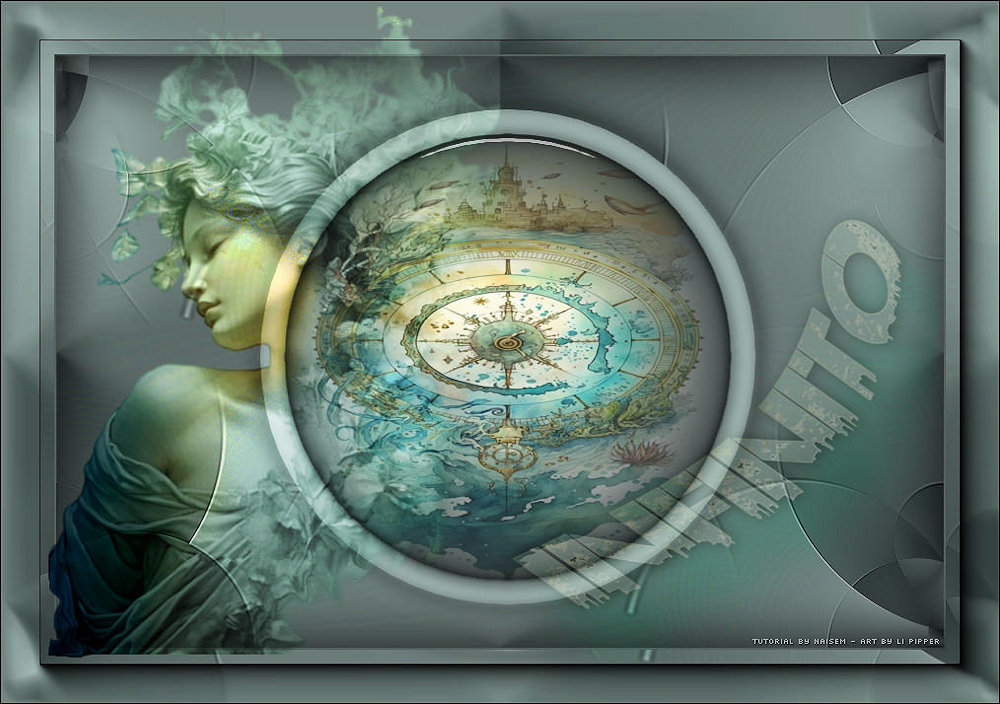
This tutorial was translated with permission from NaiseM, thank you very much!
*Original Tutorial*


MATERIAL

1 Main Tube of your choice
1 Decorative tubes of your choice
1 Misted of your choice
Materials by NaiseM
Título
Selection: Save the Selection to the Selections folder in PSP
PRESET: preset-infinito (Double-click on the #select_alpha preset to import the effect into the Alien Skin Eye Candy 5 Impact - Class plugin)
PLUGINS
Mehdi
Flaming Pear - Flexify 2
AAA Frames - Foto Frame
Alien Skin Eye Candy 5: Impact
Consult if necessary my filter section Here
*You can change the blend mode according to your colors*
Preparation
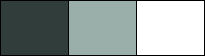
Choose two colors from the Tube or Misted:
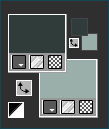
Foreground: #313d3b
Background: #9aafaa
Color 3: #ffffff
TUTORIAL
 |
This arrow marks your lineClick and drag to move it |
1_. Open a new transparent image 900 x 600 pixels
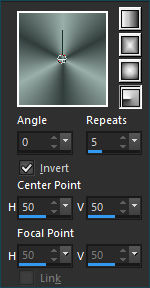
2_. Paint with the Radial gradient, Angle 0, Repeats 5, formed by the colors in use
3_. Effects - Plugins / Mehdi/ Sorting Tiles, in the settings below:
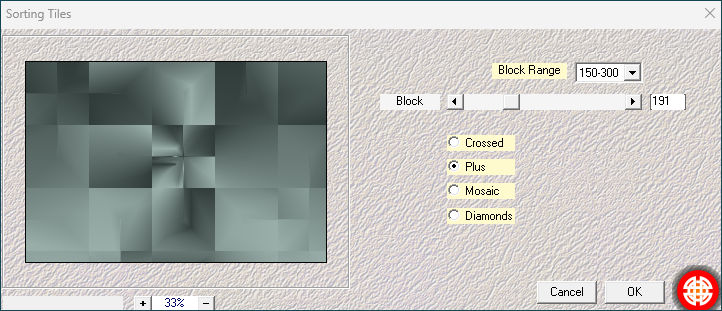
Effects - Edge Effects / Enhance More
4_. Effects - Plugins / Flaming Pear / Flexify 2, in the settings below:
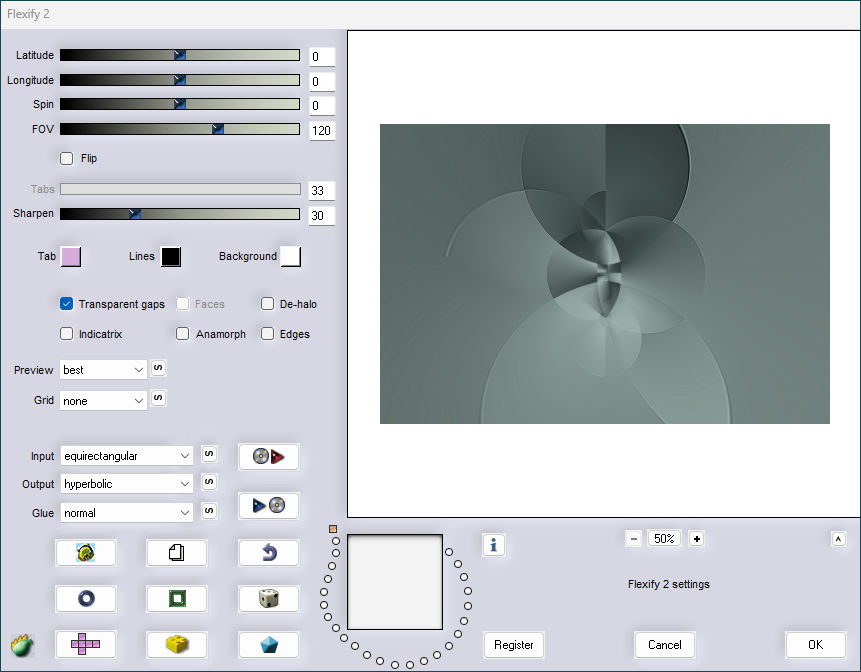
5_. Effects - Image Effects / Seamless Tiling: Default
6_. Layers - New Raster Layer
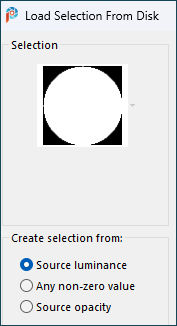
7_. Selections - Load / Save Selection / Load Selection from disk
Load the selection infinito
8_. Selections - Modify / Select Selections Borders: in the settings below:
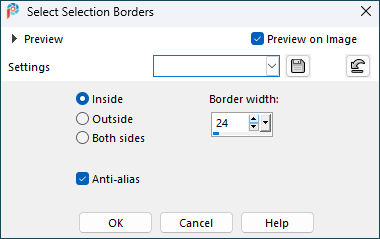
9_. Paint with the Background color
Selections - Select None
10_. With the Magic Wand tool selects the central circle
11_. Layers - New Raster Layer
Paint with the Foreground color
12_. Open the Misted - Edit / Copy
Go back to your work
Edit - Paste Into Selection
13_. Effects - Plugins / Alien Skin Eye Candy 5: Impact / Glass
Selects preset: infinito
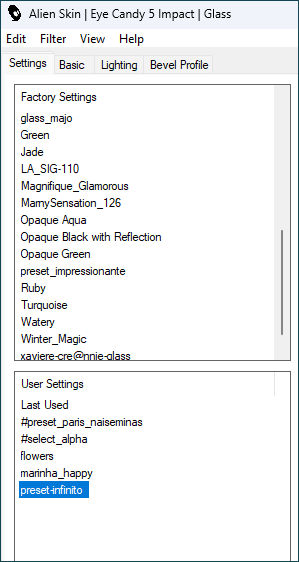
Select None
Layers - Merge/ Merge Down
14_. With the Magic Wand tool: Tolerance 0 e Feather 10
Select that border
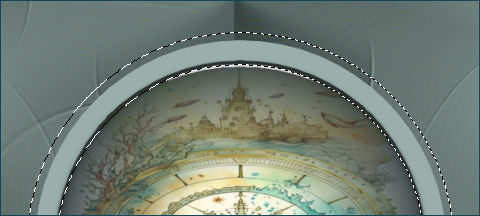
15_. Effects - 3D Effects / Drop Shadow: 0 / 3 / 73 / 34,78 / Color: #000000
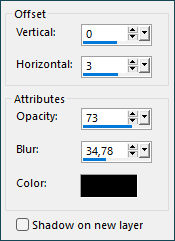
Selections - Select None
16_. Image - Add Borders / Symmetric
2 pixels - #9aafaa (Background)
17_. Edit - Copy
Selections - Select All
18_. Image - Add Borders / Symmetric
55 pixels - #ffffff
19_. Selections - Invert
Edit - Paste Into Selection
20_. Effects - Plugins / AAA Frames / Foto Frame, in the settings below:
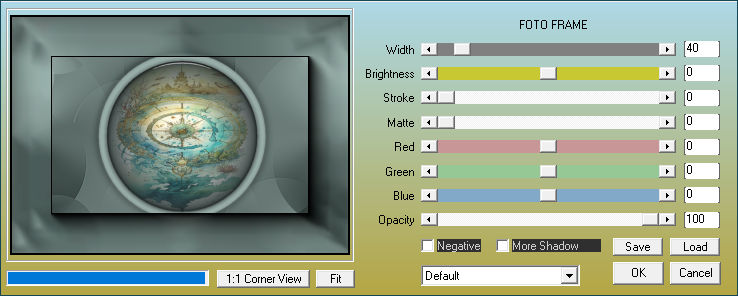
21_. Effects - 3D Effects / Drop Shadow: 0 / 0 / 100 / 100 / Color: #000000
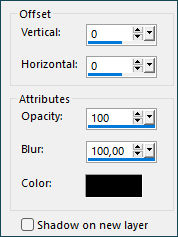
Selections - Select None
22_. Open the titulo
Edit - Copy
Edit - Paste as new layer
Pick Tool - Position X: 502,00 Position Y: 205,00
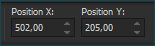
23_. Open the tubes
Image - Mirror / Mirror Horizontal
Edit - Copy
Edit - Paste as new layer
24_. Pick Tool - Position X: 49,00 Position Y: 5,00
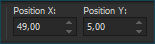
Blend Mode: Overlay
25_. Apply your watermark or signature
26_. Save as JPEG.
Submit your version to place in the Gallery.
Here
My Version.
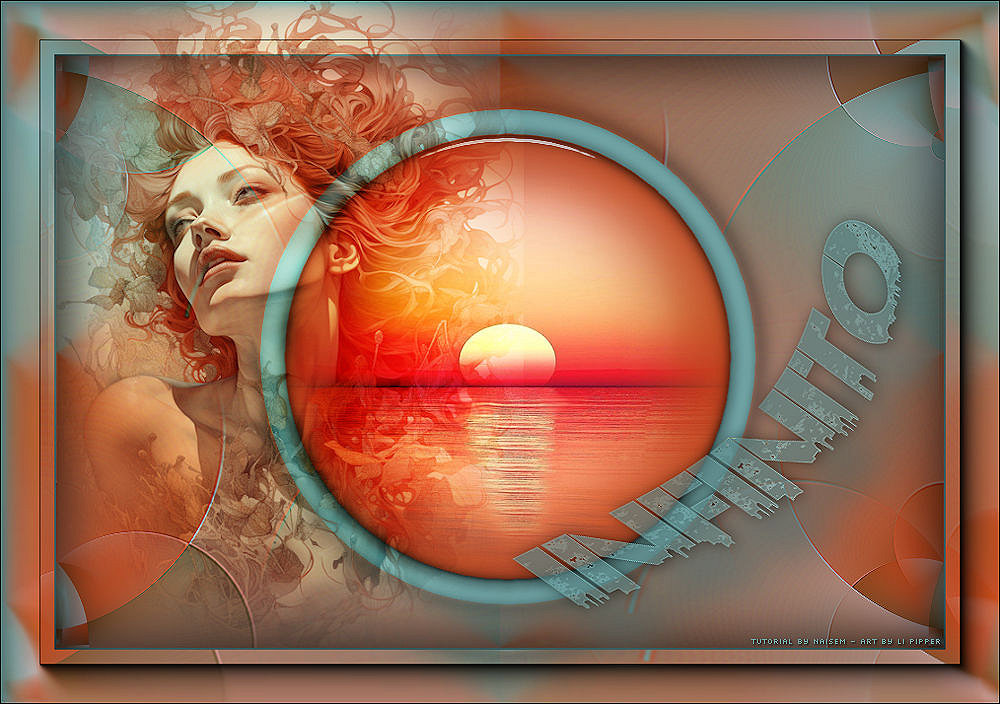
Translation Liriani Silva
03/02/2024