
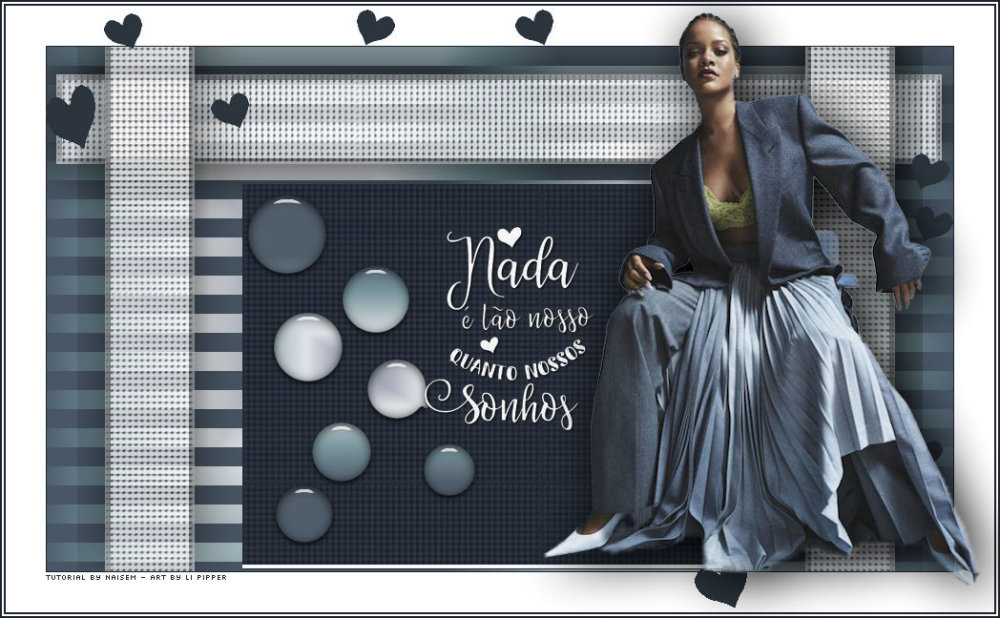
This tutorial was translated with permission from NaiseM, thank you very much!
*Original Tutorial*


MATERIALS

1 Main Tube of your choice
Materials by NaiseM
Tube TUBES-NAISEM_MULHERES_1031
Decorative deco_nossos_sonhos
brushe_nossos_sonhos (Copy the Brush into the PSP Brush folder.)
gradient_nossos_sonhos_naisem (Copy the Gradient into the PSP Gradient folder)
texture-Small Dimp1a (Copy the Texture into the PSP Texture folder)
AlphaChannel_Nossos_Sonhos
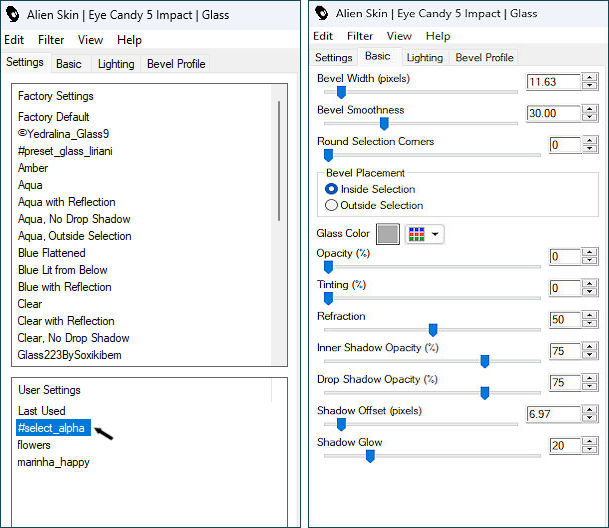
PRESET:#select_alpha (Double-click on the #select_alpha preset to import the effect into the Alien Skin Eye Candy 5 Impact - Class plugin)
PLUGINS
Carolaine and Sensibility - CS-Linear-H
Eye Candy 5 - Impact
Consult if necessary my filter section Here.
TUTORIAL
 |
This arrow marks your lineClick and drag to move it |
1_. Open alpha_nossos_sonhos
2_. Paint the alpha_nossos_sonhos with the Gradient Style - Rectangular, in the settings below:
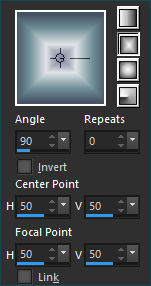
3_. Effects - Plugins / Carolaine and Sensibility - CS-Linear-H, in the settings below:
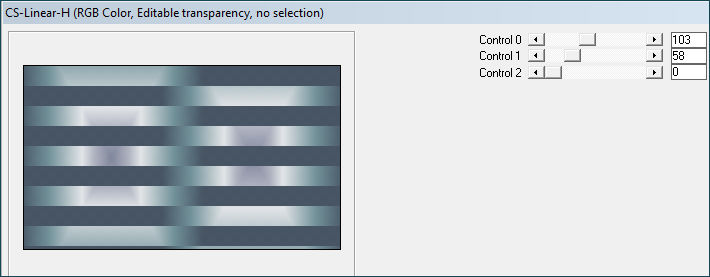
4_. Selections - Load/Save Selection / Load Selection from Alpha Channel: The selection #1
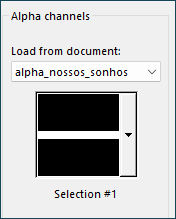
5_. Layers - New Raster Layer
Fill the layer with the color #ffffff (White)
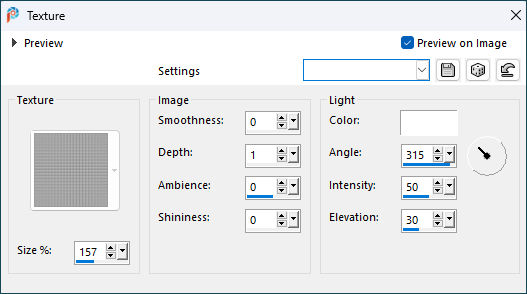
6_. Effects - Texture Effects / Texture - select the texture texture-Small Dimp1a,in the settings below:
7_. Effects - User Defined Filter: Emboss_3
(Keep the Selection)
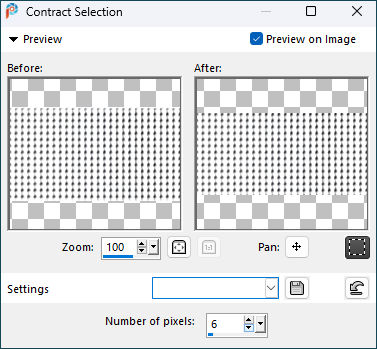
8_. Selections - Modify / Contract: 6
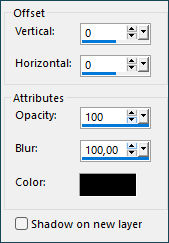
Effects - 3D Effects / Drop Shadow: 0 / 0 / 100 / 100 / Color: #000000 (Black)
9_. Selections - Select None, Opacity 75%
10_. Layers - Duplicate
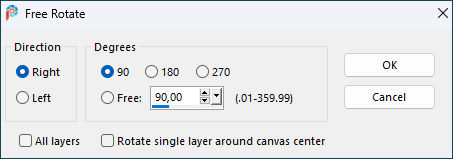
11_. Image - Free Rotate, in the settings below:
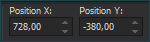
12_. Pick Tool - Position X: 728,00 Position Y: -380,00
13_. Layers - Duplicate
14_. Image - Mirror / Mirror Horizontal
15_. Layers - Merge / Merge Down, 2 times
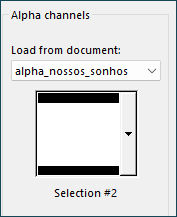
16_. Selections - Load/Save Selections / Load Selection from Alpha Channel: The selection #2
17_. Layers - New Raster Layer
Fill the layer with the color #252d38 (Or a color of your choice)
18_. Effects - Texture Effects / Texture - select the texture texture-Small Dimp1a,in the settings below:
Selections - Select None
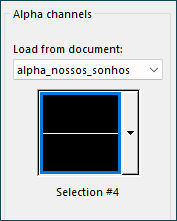
19_. Selections - Load/Save Selections / Load Selection from Alpha Channel: The selection #4
Layers - New Raster Layer
Fill the layer with the color #fffff (White)
Selections - Select None
20_. With the Pick Tool Straighten the edges

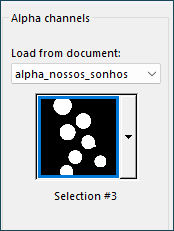
21_. Selections - Load/Save Selections / Load Selection from Alpha Channel: The selection #3
Layers - New Raster Layer
22_. Fill with the Gradient Style - Rectangular,in the settings below:
Colorize to taste
23_. Plugins - Eye Candy 5 / Impact GLass Settings: #select_alpha or use the settings below:
Selections - Select None
24_. Layers - New Raster Layer
25_. In the Foreground put the color #ffffff (white)
26_. With the Tool Paint Brush, apply brushe_nossos_sonhos
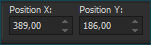
Pick Tool - Position X: 389,00 Position Y: 186,00
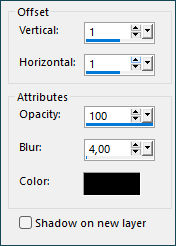
27_. Effects - 3D Effects / Drop Shadow: 1 / 1 / 100 / 4 / Color: #000000 (Black)
28_. Image - Add Borders / Symmetric
2 pixels - #1e242d
42 pixels - #ffffff
2 pixels - #1e242d
2 pixels - #ffffff
2 pixels - #1e242d
29_. Open deco_nossos_sonhos, Edit Copy
Edit - Paste as New Layer
Colorize to taste
30_. Open the tubes
Edit - Copy
Edit - Paste as new layer
Position as desired
31_. Apply your watermark or signature
Save as JPEG.
Submit your version to place in the Gallery.
Here
My Version.

Translation Liriani Silva
10/01/2024