
This tutorial was translated with permission from NaiseM, thank you very much!
*Original Tutorial*

MATERIAL

1 Main Tube of your choice
1 Misted of your choice
Materials by NaiseM
Background
Decos
Título
Selection: Save the Selection to the Selections folder in PSP
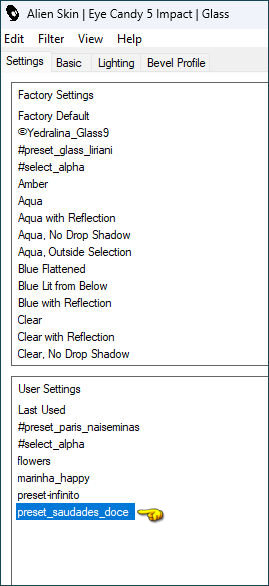
PRESET: preset_saudades_doce (Double click to import into the Plugin Alien Skin Eye Candy 5: Impact)
Mask: Narah (Thanks)

PLUGINS
Nick Software - Color Efex Pro 3.0
Alien Skin Eye Candy 5: Impact / Glass
Carolaine and Sensibility
FuHouse - Loom
AAA Foto Frame
Consult if necessary my filter section Here.
You can change the blend mode according to your colors.
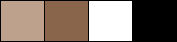
Colors used in this tutorial:
#bda18c
#89654c
#ffffff
#000000
TUTORIAL
 |
This arrow marks your lineClick and drag to move it |
1_. Open the Background that came with the author's material
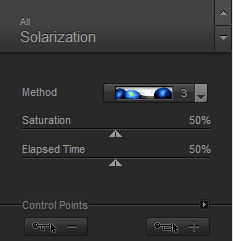
2_. Effects - Plugins Nick Software - Color Efex Pro 3.0 / Solarization, in the settings below:
3_. Layers - New Raster Layer
4_. Selections - Load / Save Selection / Load Selection from disk
5_. Load the selection @selecao_saudades_doce
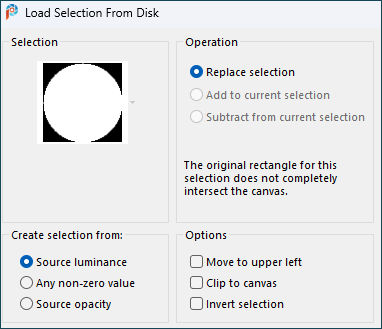
6_. Paint with the color: #bda18c
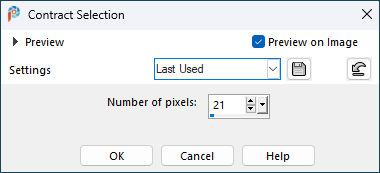
7_. Selections - Modify / Contract, in the settings below:
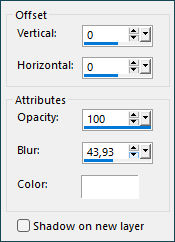
8_. Effects - 3D Effects / Drop Shadow: 0 / 0 / 100 / 44,93 / Color: #ffffff (branco)
9_. Layers - New Raster Layer
10_. Open the Misted - Edit / Copy
Go back to your work
Edit - Paste Into Selection
11_. Duplicate
12_. Layers - Merge/ Merge Down two times
13_. Plugins Alien Skin Eye Candy 5: Impact / Glass, preset_saudades_doce
Selections - Select None
14_. Activate Layer Background
15_. Layers - New Raster Layer
16_. Paint with the color: #ffffff (branco)
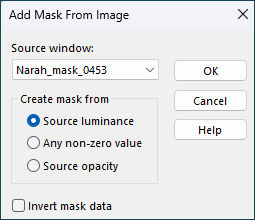
17_. Layers - New Mask Layer / From image / Narah_mask_0453
Layers - Merge / Merge Group
18_. Layers - New Raster Layer
Paint with the color: #ffffff (branco)
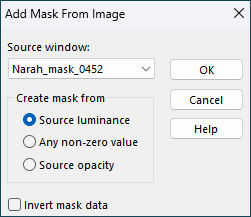
Layers - New Mask Layer / From image / Narah_mask_0452
Layers - Merge / Merge Group
Blend Mode: Overlay
19_. Layers - Merge / Merge Visibile
Edit - Copy
20_. Image - Add Borders / Symmetric
1 pixels - with color #000000
19 pixels - with color #89654c
19 pixels - with color #c5ac9a
21_. Selections - Select All
22_. Image - Add Borders / Symmetric
48 pixels - with color #ffffff
23_. Selections - Invert
24_. Edit - Paste Into Selection
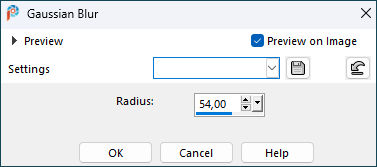
25_. Adjust - Blur / Gaussian Blur: Radius:54,00
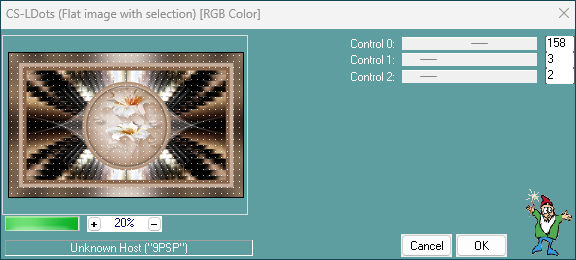
26_. Plugins Carolaine and Sensibility - CS-LDots, in the settings below:
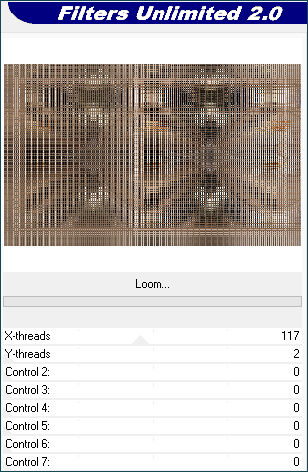
27_. Plugins FuHouse - Loom, in the settings below:
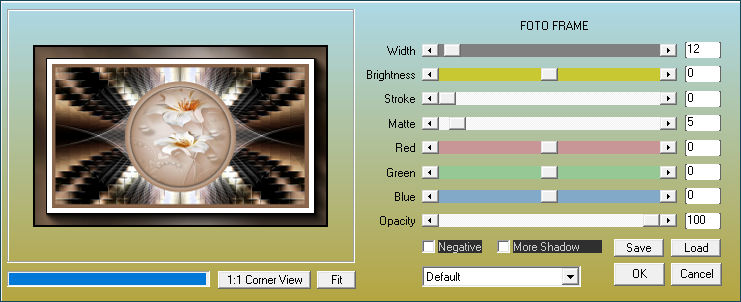
28_. Plugins AAA Foto Frame, in the settings below:
29_. Selections - Invert
Effects - 3D Effects / Drop Shadow: 2 / 2 / 100 / 24,04 / Color: #000000
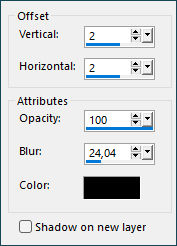
Selections - Select None
30_. Plugins Nick Software - Color Efex Pro 3.0 / Cross Processing, in the settings below:
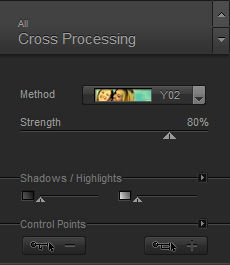
31_. Open deco2_saudades_doce
Edit Copy
Go back to your work
Edit Paste As New Layer
32_. Plugins Carolaine and Sensibility - CS-LDots, in the settings below:
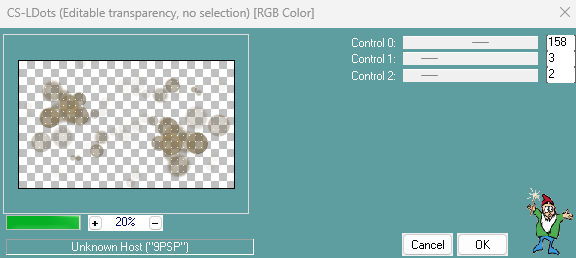
Effects - 3D Effects / Drop Shadow: 2 / 2 / 100 / 2,43 / Color: #000000
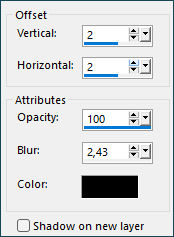
33_. Open deco1_saudades_doce
Edit Copy
Go back to your work
Edit Paste As New Layer
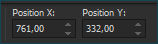
34_. Pick Tool - Position X: 761,00 Position Y: 332,00
Using the Eraser Tool, erase parts of the pin, as shown in the example:
35_. Open your Tube
Edit Copy
Go back to your work
Edit Paste As New Layer
Position it on the left side, as in my example.
Drop Shadow as desired
36_. Open the titulo
Edit Copy
Go back to your work
Edit Paste As New Layer
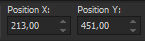
Pick Tool - Position X: 213,00 Position Y: 451,00
Colorize to your liking
37_. Activate the tube layer
Layers - Arrange / Bring to Top
38_. Apply your watermark or signature
39_. Save as JPEG.
Submit your version to place in the Gallery.
Here
My Version.
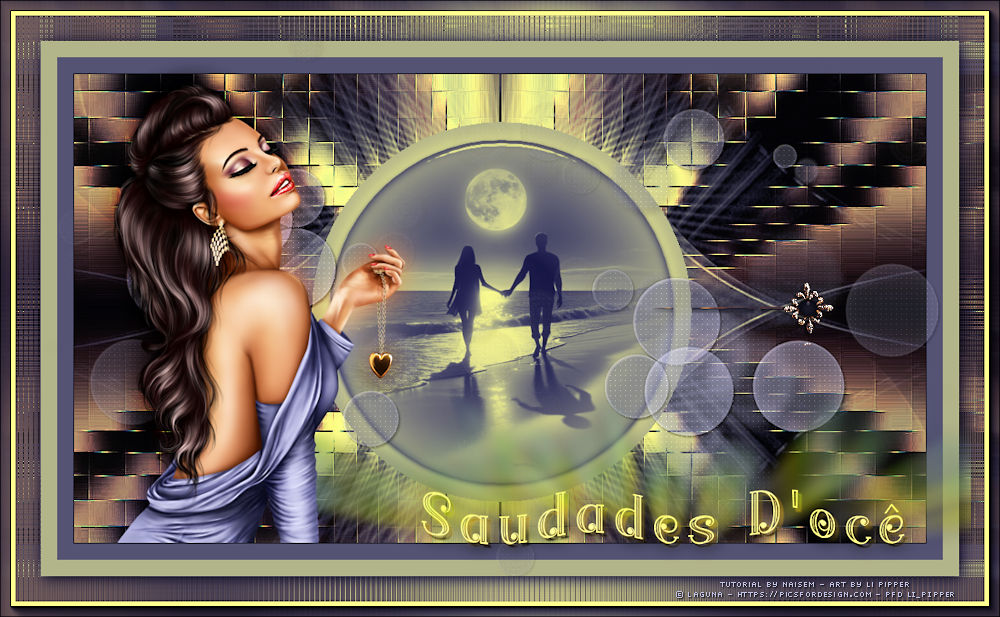
Translation Liriani Silva
14/03/2024