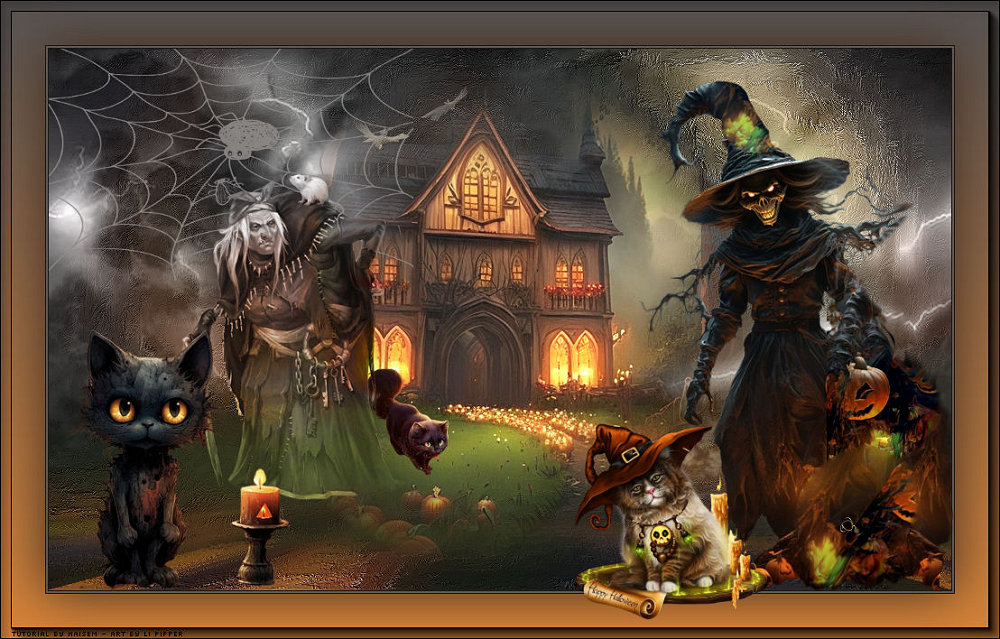
This tutorial was translated with permission from NaiseM, thank you very much!
*Original Tutorial*


MATERIALS

1 Main Tube of your choice
1 Misted Landscape of your choice
Decorative tubes of your choice
PLUGINS
Unlimted - Vídeo - Interlace
Mura's Filter Meister
AAA Foto Frame
Consult if necessary my filter section Here
Mask by Narah, Thanks.
Rest of NaiseM materials.
*You can change the blend mode according to your colors*
Open the material on the PSP, duplicate and close the original.
Open image - edit copy
TUTORIAL
 |
This arrow marks your lineClick and drag to move it |
1_. Open a new transparent image 1000 x 600 pixels
Select All - Edit / Paste Into Selection
Select None
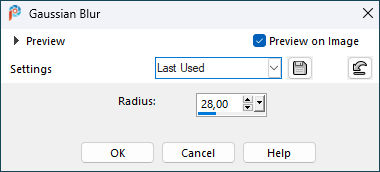
2_. Adjust - Blur / Gaussian Blur, in the settings below:
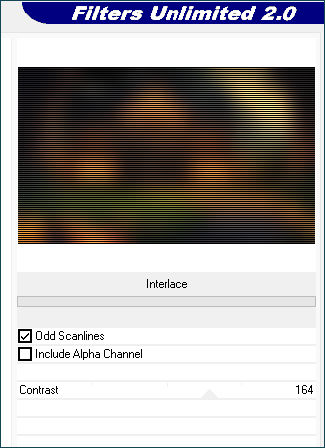
3_. Plugins - Unlimted / Vídeo / Interlace, in the settings below:
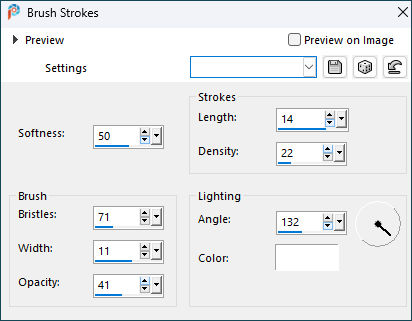
4_. Effects - Art Media Effects / Brush Strokes, in the settings below:
5_. Apply the 2020 mask to your image
6_. Resize 70% or whatever size you want
Edit - Paste as New Layer.
7_. Return to Layer Raster 1
8_. Layers / Duplicate
9_. Plugins - Mura's Filter Meister / Perspective Tiling, in the settings below:
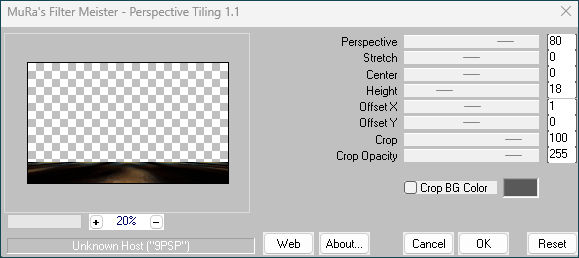
10_. With the Magic Wand Tool, in the settings below:

Select the white part, delete 6 times
Selections - Select None
11_. Click on Layer Raster 2
12_. Layers / Duplicate
Blend Mode Luminance (L)
Layers - Merge / Merge Down
13_. Click on Layer Copy Of Raster
14_. Layers - New Raster Layer
Paint with a light color
15_. Layer - New Mask Layer / From Image, NarahsMasks_1597, in the settings below:
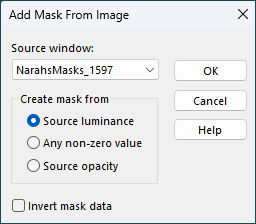
Merge Group
16_. Layers / Duplicate
Effects Seamlless Tiling Side by side,in the settings below:
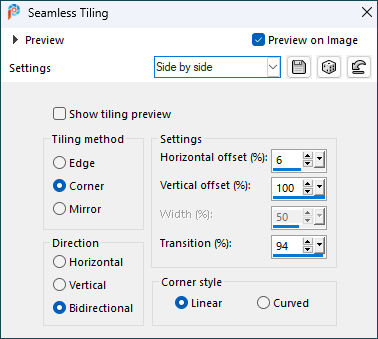
17_. Image - Add Borders / Symmetric
1 pixels - dark color
2 pixels - lighter color
1 pixels - dark color
50 pixels - color to your taste
18_. With the Magic Wand Tool, in the settings below:
Select this Border de 50 pixels
19_. See below
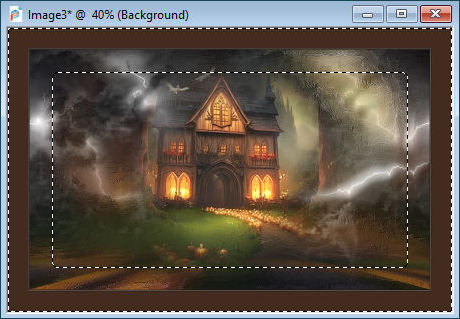
20_. Choose 2 colors from your image
Set your foreground color to #d88438
and your background color to #565352
Set your foreground color to a Foreground/Background Gradient, style Linear, in the settings below:
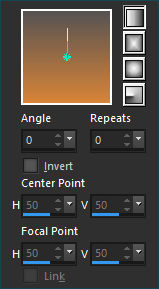
21_. Apply the gradient to the selection
22_. Plugins - AAA Foto Frame, in the settings below:
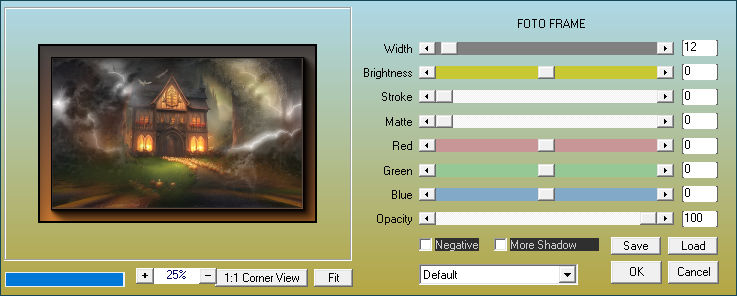
Selections - Select None
23_. Open the tubes
Edit - Copy
Edit - Paste as new layer
Position as desired
24_. Apply your watermark or signature
25_. Save as JPEG.
Submit your version to place in the Gallery.
Here
My Version.
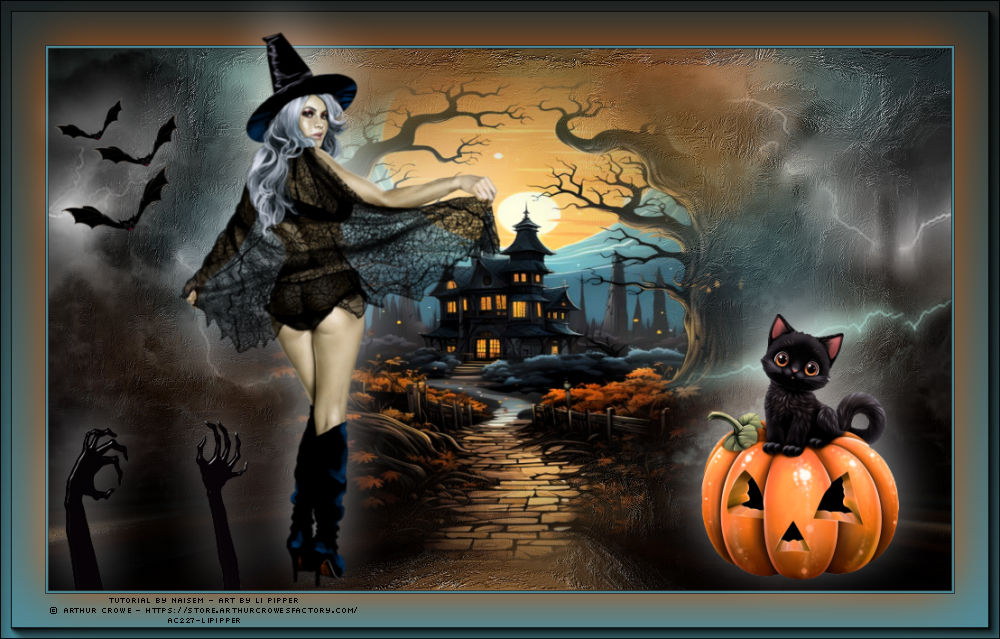
Translation Liriani Silva
25/10/2023