
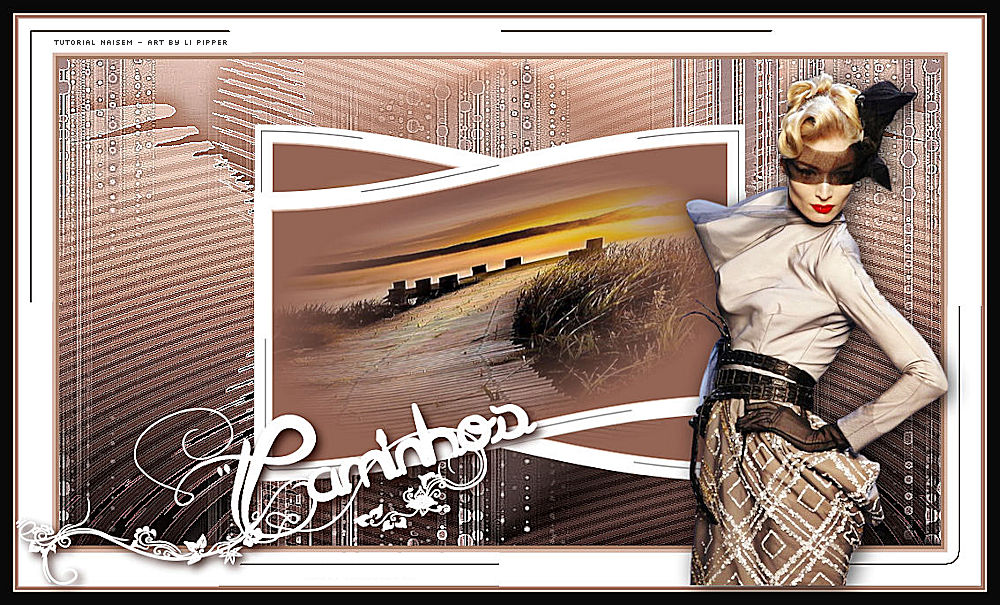
This tutorial was translated with permission from NaiseM, thank you very much!


*Tutorial Original*


MATERIAL

Main Tube of your choice
Misted Landscape of your choice
PLUGINS
Filters Unlimited 2.0 - Filter Filter Gallery E
Nick Softhere 3.0
Consult if necessary my filter section Here
Mask by Narah, Thanks.
Rest of NaiseM materials.
*You can change the blend mode according to your colors*
1 Dark color for the Foreground
1 Light color for the Background
1 Color of your choice
TUTORIAL
 |
This arrow marks your lineClick and drag to move it |
1_. Put the dark color on the Foreground and the light color on the Background
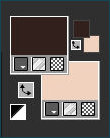
Open a new transparent image of 1000 x 550 pixels
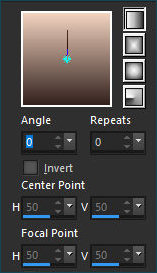
Paint the transparency with the Gradient Style - Linear / Angle 0 / Repeats 0 / Invert unchecked
formed by the chosen colors
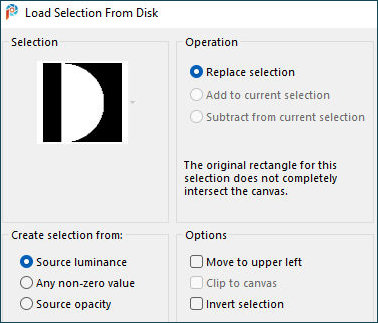
2_. Selections - Load / Save Selection / Load Selection from disk
Load the selection #caminhos
Selections - Promote Selection to Layer
Selections - Select None
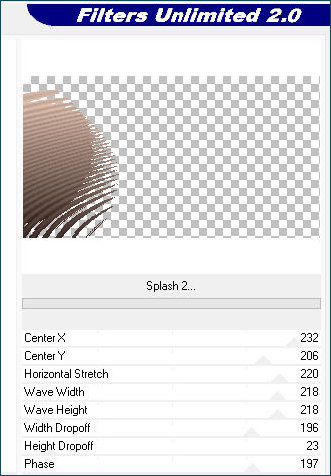
3_. Effects - Plugins / Filters Unlimited 2.0 / Filter Factory Gallery E - Splash2
With the following settings
4_. Effects - Edge Effects / Enhance
5_. Layers - Duplicate
Image - Mirror / Mirror Horizontal
Layers - Merge / Merge Down
6_. Layers - New Raster Layer
Fill with a color of your choice
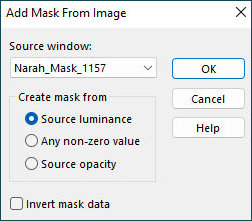
7_. Layers - New Mask Layer / From Image / Narah_Mask_1157
Layers - Merge / Merge Group
Layers - Arrange / Move Down
Effects - Edge Effects / Enhance More
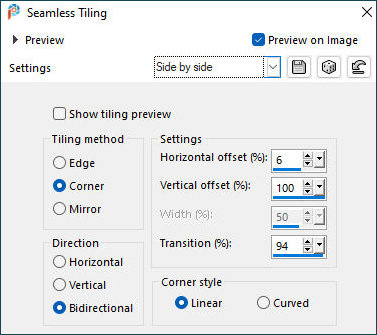
Effects - Image Effects / Seamless Tiling / Side by Side
8_. Activate Layers Promoted Selection
Layers - Duplicate
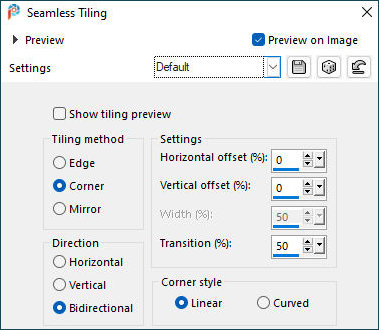
Effects - Image Effects / Seamless Tiling / Default
Layers - Merge / Merge Down
9_. Effects - Effects 3D / Drop Shadow
With the following settings
0/ 5/ 78/ 21,00 / #000000 (Black)
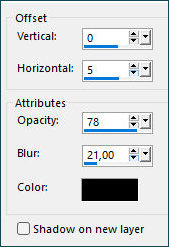
Repeat - Effets - Effets 3D / Drop Shadow
With the following settings
0/-5/ 78/ 21,00 / #000000 (Black)
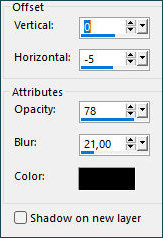
10_. Layers - Properties / General / Blend Mode / Overlay (or your choice)
Layers - Merge / Merge Visible
11_. Effects - Plugin / Nik Software - Color Efex Pro 3.0 Completo / Tonal Contrast
In the settings default
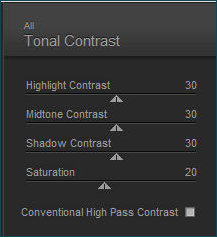
12_. Image - Add Borders / Symmetric
4 pixels - with Background color
4 pixels - with Foreground color
38 pixels - color #ffffff (White)
13_. Select with the magic wand (Tolerance and Feather 0) the border of 38 pixels
14_. Selections - Promote Selection to Layer
Paint with the color of the mask
15_. Effects - Plugins / Filters Unlimited 2.0 / Filter Factory Gallery E - Transparent Pizza
With the following settings
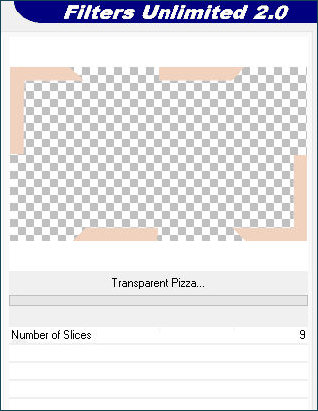
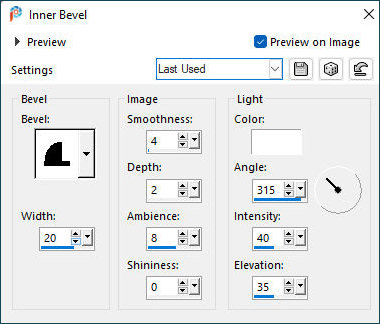
Effects - 3D Effects / Inner Bevel:
With the following settings
Layers - Properties / General / Blend Mode / Hard Light
Selections - Select None
Layers - Merge / Merge Down
16_. Layers - Duplicate
Image - Resize 51% (Resize all layers unchecked)
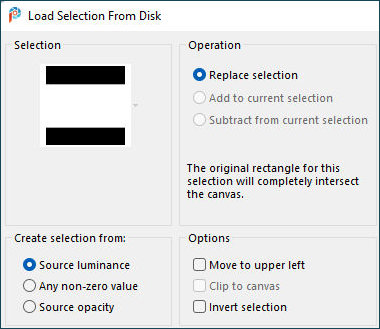
17_. Selections - Load / Save Selection / Load Selection from disk
Load the selection #caminhos2
Layers - New Raster Layer
Fill with a color of your choice
18_. Open the Misted Landscape
Edit - Copy
Edit - Paste Into Selection
Selections - Select None
Layers - Merge / Merge Down
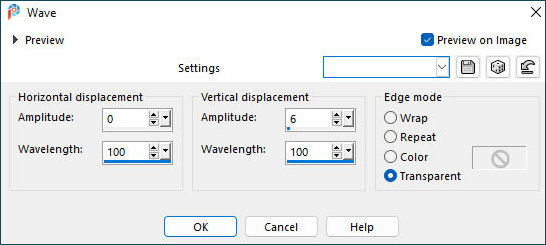
19_. Effects - Distortion Effects / Wave
With the following settings
20_. Layers - Duplicate
Image - Mirror / Mirror Horizontal
21_. Layers - Merge / Merge Down
22_. Image - Add Borders / Symmetric
4 pixels - with background color
4 pixels - with foreground color
15 pixels - color #000000 (Black)
23_. Open the title
Edit - Copy
Edit - Paste as New Layer
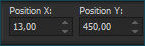
Pick Tool - Position X: 13,00 Position Y: 450,00
24_. Open The Main Tube
Edit - Copy
Edit - Paste as New Layer
Position as you wish
25_. Apply your watermark or signature
26_. Save as JPEG.
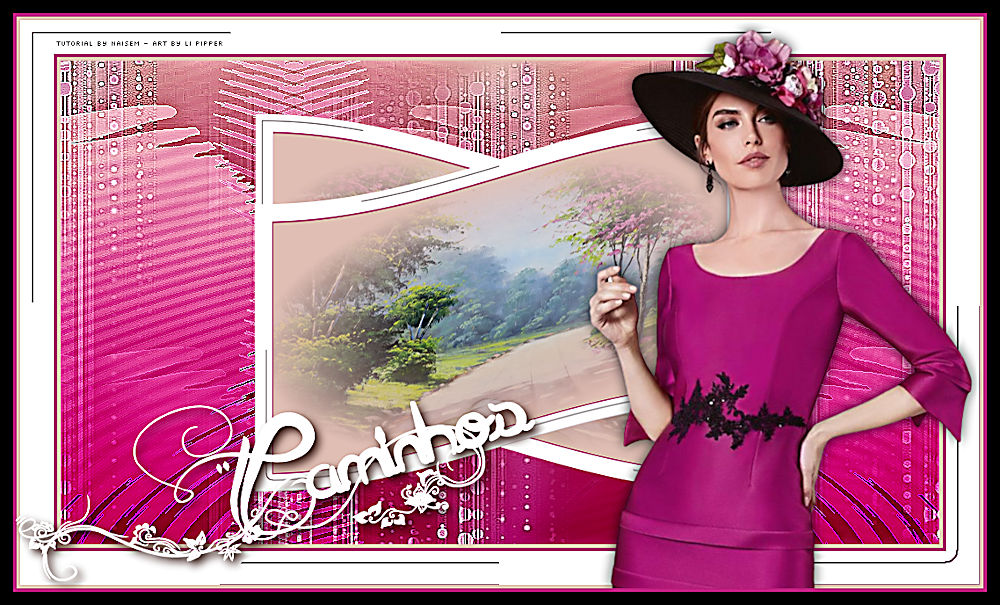
My Version.
Translation Liriani Silva
28/10/2022